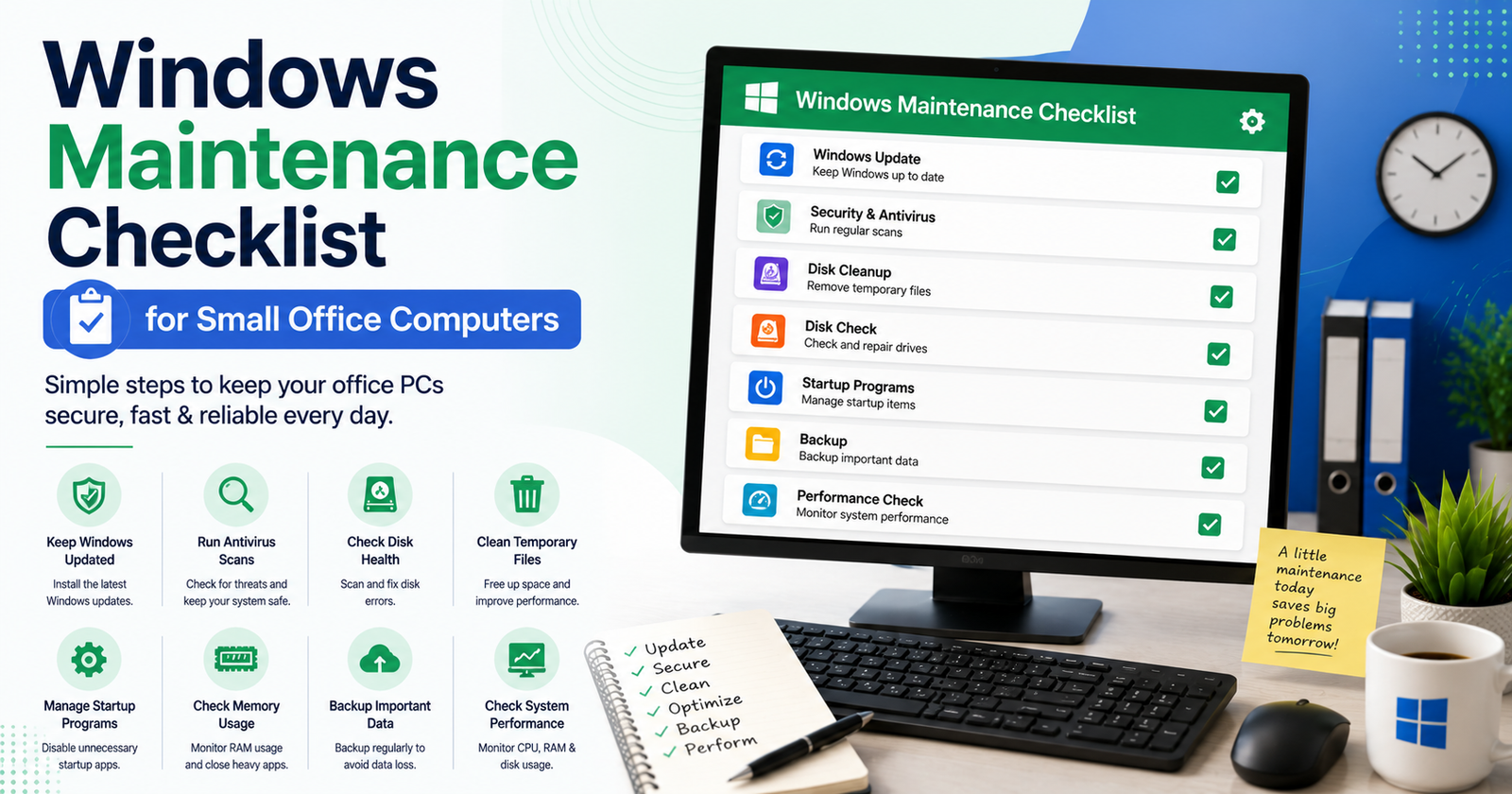

Office computers rarely just die out of nowhere. They slow down bit by bit, storage fills up without anyone noticing, updates pile up quietly in the background — and then one day a machine freezes mid-call during the one meeting that actually mattered. Most of this is preventable. A short, consistent routine handles it, and you don’t need an IT department sitting there watching for it either.
This checklist breaks things down into monthly tasks any small office can run through without needing to know much about computers at all.
Why Bother With Regular Maintenance
No IT team catching things early means small offices end up dealing with problems after they’ve already caused a mess, not before.
A machine that crashes halfway through a project costs way more in lost time than the fifteen minutes it would’ve taken to run basic maintenance the week before. Prevention’s cheaper. Almost always.
Older hardware needs more attention, not less, which sounds obvious but people forget it constantly. A five-year-old machine that gets regular maintenance can genuinely outperform a two-year-old one nobody’s touched since it came out of the box.
And security really does come down to staying current. Outdated software is one of the most common ways malware and ransomware get in — a consistent update schedule closes those holes before they turn into an actual incident, not after.
What to Do Every Month
These are the core tasks. Fifteen, twenty minutes per machine, tops.
Install whatever Windows updates are pending, then actually restart the machine — updates that never get applied because someone kept hitting “remind me later” are one of the most common reasons machines slow down or develop security gaps nobody can explain.
Clear out temporary files. Windows piles up cached downloads, leftover installer junk, temp files, all of it, over time. Disk Cleanup is built right into Windows — a couple of clicks and you’ve freed up real space.
Check that backups actually completed. Don’t just assume. A backup that’s been silently failing for three weeks isn’t protecting anything, and you won’t find that out until the exact moment you need it most.
And check available storage. Once a drive drops below ten percent free, things slow down noticeably, and updates start failing outright. Flag anything getting close to that line before it becomes a real problem.
What to Do Every Quarter
Some things don’t need monthly attention. They also can’t just get ignored for a year straight.
Go through installed software and get rid of what nobody uses. Unused programs still eat up space; sometimes they’re running quietly in the background, and if they go unpatched long enough, they can turn into an actual security risk.
Test a restore from backup. A backup nobody’s ever tested is really just a hope, not a backup. Once a quarter, pull a random file out of the backup system and restore it somewhere else — open it, make sure it’s actually intact and readable. Takes about five minutes and it catches silent failures long before an emergency would.
Check driver updates too, especially graphics and network drivers — outdated ones cause weird instability that’s genuinely hard to trace back to the source otherwise. Windows Update handles most of this, or go straight to the manufacturer’s tool if you want to be thorough.
What to Do Once a Year
A handful of things make sense once annually, often paired with some broader office review anyway.
Physically clean the hardware. Dust builds up inside desktop towers, restricts airflow, causes overheating over time — a yearly cleaning, especially in an office without great air filtration, genuinely extends how long the hardware lasts.
Review who has access to what. Which employees still need access to which machines, and who’s got old accounts that should’ve been removed months ago. Overlaps with general security practice, sure, but it’s worth its own dedicated pass tied specifically to hardware.
And take a real look at whether anything needs replacing. Not every slow machine needs new hardware — but a yearly review catches the ones that are genuinely dragging productivity down instead of letting the frustration just quietly build for another twelve months.
Actually Making This a Habit
A checklist that just sits in a shared drive folder doesn’t do anything. It needs an actual spot on the calendar.
Pick a day. First Monday of the month, whatever works. Block time for it specifically — treating maintenance as a scheduled task instead of an “if there’s time” thing is really the entire difference between it happening and it not.
Keep a simple log. Nothing fancy — just which machines got checked and when. Patterns show up fast this way, like one particular computer that keeps needing extra attention every single month, which usually means something deeper’s going on with it.
And give one person the job. Even without formal IT support, having a single named point of contact keeps this from quietly disappearing the moment everyone assumes somebody else is handling it.
Mistakes That Undo the Routine
A few habits quietly wreck an otherwise solid maintenance setup.
Ignoring restart prompts indefinitely. Updates that never get applied leave the system half-patched, which is arguably worse than not updating at all. Just schedule the restart for end of day if interruptions during work hours are the concern.
Treating backups as set-and-forget. Backup software fails silently, sometimes for weeks, and nobody notices unless someone’s actually checking. Verification matters just as much as the initial setup did.
And skipping maintenance on machines that “seem fine.” They still benefit from the routine. Problems build up invisibly long before anyone notices anything’s wrong, and by the time it’s obvious, it’s already harder to fix.
Final Thoughts
None of this requires technical expertise or a huge time investment. Fifteen minutes a month per machine, a slightly deeper look every quarter, one real pass a year — that’s enough to keep a small office’s computers running reliably without any surprises. The offices that skip this usually end up paying for it eventually, in downtime that costs a lot more than the maintenance ever would have.




[…] Vitamin E for antioxidant protection and skin. Vitamin K for clotting and bone metabolism. Vitamin D for bones and immune regulation. A doctor or registered dietitian, ideally with bloodwork to back […]
[…] payment gateway rejecting valid transactions for even twenty minutes is real money walking out the door. A third-party integration timing out […]
[…] just kept working from memory and hoped it lined up once they were back above ground with bars on their phone. Sometimes it didn’t. That’s the whole reason offline team task sync tools exist, and […]
[…] away the marketing language and the core idea is simple: take the steps a client goes through, from the first call to final delivery, and lay them out so a human can actually see […]