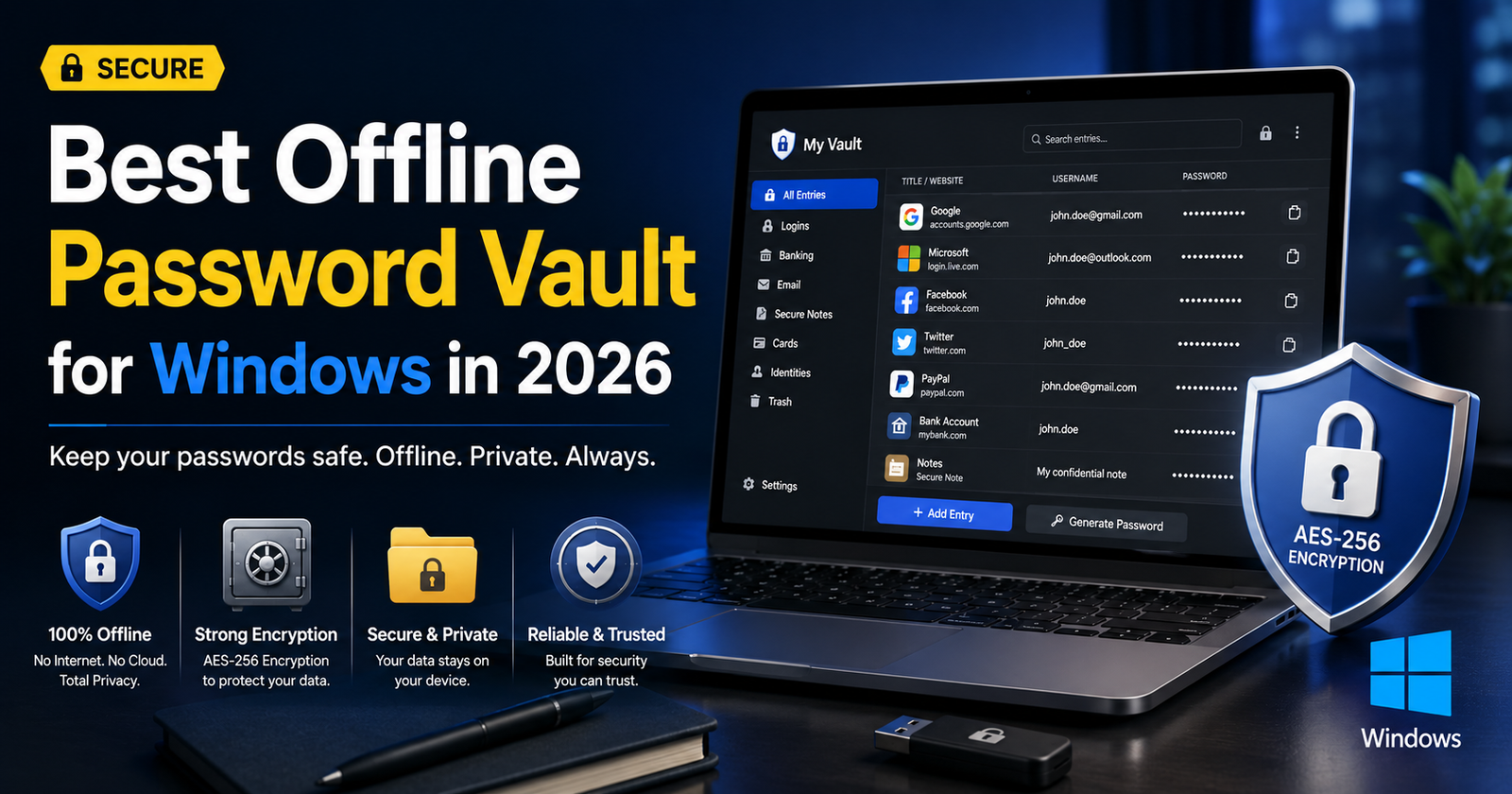

Cloud password managers dominate the market. Sync across every device, barely any setup, and most people never think about it again — which is exactly why they’ve won. But there’s a smaller, more stubborn group of Windows users who want nothing to do with the cloud version of this. Not because it’s bad, necessarily. They don’t want their credentials sitting on somebody else’s server, full stop. An offline password vault is the answer: every credential stored locally, encrypted, no server anywhere in the picture.
This guide gets into why someone would pick offline over cloud, what actually separates a good vault from a mediocre one, and how to set one up on Windows without doing it half-wrong.
Why Go Offline in the First Place
Mostly it comes down to how much risk you’re willing to tolerate, and how much control you want to keep.
Cloud password managers have been breached. Not hypothetically — actual, well-known companies, ones with strong reputations, have had this happen. An offline vault sidesteps that risk category entirely. No central server means no giant pile of encrypted data sitting somewhere for an attacker to go after all at once.
There’s also just the control angle. With an offline vault, you decide where the file lives — local drive, encrypted USB stick, some private backup spot only you know about. Nobody else is making that call for you.
And certain professions lean this way for a reason. Lawyers, accountants, anyone under a confidentiality obligation — they’d often rather not hand login credentials to a third party at all, even an encrypted, well-intentioned one.
What Actually Matters in a Windows Offline Vault
Not every offline tool is built the same. A few things separate the good ones from the forgettable ones.
Encryption strength first. AES-256, specifically — that’s the standard now, and anything weaker isn’t worth trusting with a banking login or business credentials.
A portable database file matters too. The strongest offline vaults keep everything in one encrypted file you can copy, back up, and move to another machine by hand if you need to. That portability is basically the entire point of going offline instead of syncing to a cloud.
Auto-lock and clipboard clearing — a vault that just sits open forever isn’t really doing its job. Good software locks itself after a stretch of inactivity, and clears whatever got copied to the clipboard after a short window, so a password doesn’t just sit there waiting to be pasted somewhere it shouldn’t be.
Some vaults go further and support a second unlock method — a key file alongside the master password, say — so you’re not relying on one single point of failure.
A Few Options Worth Knowing
A handful of tools keep earning trust among people who actually care about this stuff.
KeePass is the obvious one. Open source, been around forever, and its file format has practically become the industry standard at this point. KeePassXC and a few other forks build on the same base but with a cleaner, more modern interface — worth trying if the original KeePass UI feels dated to you.
Beyond that there are smaller open source projects doing more or less the same thing — local-only storage, slightly different interfaces, same underlying idea of keeping everything on the device and nowhere else.
Windows also has a built-in credential manager. It’s fine, technically. Handles a handful of saved logins without complaint. But it falls apart once you’re managing more than a few accounts — no real search, no organization, nothing close to what a dedicated vault gives you.
Setting It Up Properly
Installing one of these takes a few minutes. Setting it up properly takes a little more thought than that.
Start with the master password. There’s no “forgot password” link with an offline vault — no account recovery, nothing. That one password is carrying everything. A long passphrase beats a short, complicated string here, both for memorability and actual strength.
Where you store the database file matters more than people assume. Don’t just leave it sitting loose on the desktop. Put it in a clearly labeled folder, ideally one already covered by your regular backup routine, so it doesn’t get forgotten or accidentally deleted.
Backing it up to a cloud drive is one of those things people do without really thinking it through. It’s not automatically wrong — but if you’re going to do it, make sure the vault file itself is still encrypted before it ever touches that cloud drive. Otherwise you’ve quietly turned an offline setup into a cloud one without meaning to.
Importing old passwords needs a bit of care too. Most vaults will pull from a browser’s saved passwords or a CSV export, which is convenient, but that CSV sits on your disk in plain text until you delete it. Do that immediately after the import. Don’t leave it sitting there.
Making It Part of Daily Use
None of this protects you if the vault just sits unused after week one.
Unique passwords, every single site — this is really the entire value proposition of a password manager, and it collapses the moment you reuse anything. Let the vault generate something random for each account. Your memory doesn’t need to hold any of it.
Go back through it every few months. Old accounts pile up, stale passwords pile up, and a quarterly cleanup — delete what you don’t use, update what’s gotten old — keeps the whole thing actually useful instead of just accurate in theory.
And back it up. Losing the only copy of an offline vault means losing everything in it, permanently, no recovery email to click. A backup on a separate physical device is the minimum. Some people keep a printed recovery sheet somewhere genuinely safe, for the true worst case.
Mistakes That Undo the Whole Point
A few habits quietly wreck the security this whole setup is supposed to provide.
Writing the master password on a sticky note stuck to the monitor. It happens more than you’d think, and it defeats the entire exercise instantly. If a physical backup is genuinely necessary, a locked drawer or a safe — not anywhere visible.
Skipping updates. Even offline software gets security patches, and ignoring them leaves known holes unpatched, even if the vault itself never touches the internet directly.
And forgetting the device itself can just get stolen. An offline vault sitting on an unencrypted laptop isn’t offering much if someone walks off with the laptop. Full-disk encryption on the Windows machine is the second layer that actually makes this work.
Final Thoughts
An offline password vault costs a little convenience. In exchange, you get real control and real privacy — no third party holding your credentials, no server to worry about getting breached. For a business owner handling client information, or honestly anyone who’s just tired of trusting yet another cloud service with every login they own, it’s a fair trade. Set it up once, get into the habit, and after a week or two you won’t even notice the extra step anymore.



[…] take a real look at whether anything needs replacing. Not every slow machine needs new hardware — but a yearly review catches the ones that are […]
[…] B-complex ones (B1, B2, B3, B5, B6, B7, B9, B12), C, D, E, K. Nothing further down the alphabet — X included — ever got reached, because nothing was left that needed […]
[…] the tool is the easy part, honestly. Teams that actually get value out of this stuff review the recurring patterns weekly, tighten the […]